INP Explained: Interaction to Next Paint
A page can load quickly and still feel slow. You click a menu, press “Add to cart,” or type into a search box, but the interface hesitates before anything visible happens. Interaction to Next Paint, or INP, measures this kind of responsiveness.
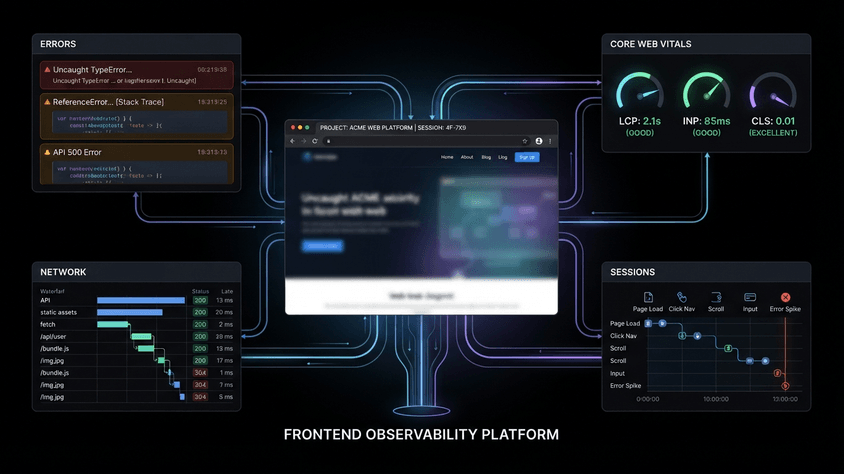
INP is one of Google’s three Core Web Vitals, alongside Largest Contentful Paint (LCP) and Cumulative Layout Shift (CLS). It looks at interactions throughout a user’s visit rather than judging responsiveness from only the first interaction. INP officially replaced First Input Delay (FID) as a Core Web Vital on March 12, 2024.
What Is INP?
Interaction to Next Paint measures how long a page takes to provide the next visual frame after a user interaction.
It observes qualifying interactions such as:
- mouse clicks;
- touchscreen taps;
- keyboard presses.
For each interaction, INP measures the time from the user beginning the interaction until the browser is able to present the next frame. It therefore measures more than JavaScript execution alone.
Scrolling, hovering, and zooming are not directly included in INP.
A low INP means the page responds consistently quickly. A high INP usually means that at least some important interactions are being delayed by main-thread work, expensive event handlers, rendering work, or a combination of these problems.
INP Score Thresholds
Google and the Chrome team currently classify INP using these thresholds:
| INP | Rating |
|---|---|
| ≤ 200 ms | Good |
| > 200 ms to ≤ 500 ms | Needs improvement |
| > 500 ms | Poor |
The recommended assessment uses the 75th percentile of page visits, considered separately for mobile and desktop users.
This distinction matters. A 150 ms interaction on your development laptop does not prove that users have good INP. Real visitors may have slower CPUs, different browser conditions, more background work, or different interaction patterns.
How INP Works
INP does not calculate an average of every interaction.
Chrome observes interactions across the lifespan of the page and selects a value representing one of the slowest interactions. For most page visits, the worst interaction becomes the INP candidate. On highly interactive pages, the calculation reduces the influence of rare outliers: one highest-latency interaction is ignored for every 50 interactions.
This design answers a useful question:
Was the page reliably responsive, even when the user performed many different actions?
Consider a product page:
- Opening the navigation takes 70 ms.
- Selecting a product option takes 110 ms.
- Opening a size selector takes 90 ms.
- Clicking “Add to cart” takes 620 ms.
The page may feel fast most of the time, but the important cart interaction is clearly poor. An average could hide that problem. INP is intentionally much more sensitive to these slow experiences.
The Three Parts of INP
An interaction can be divided into three main phases:
Input delay → Processing duration → Presentation delay
Together, they form the total interaction latency.
Input Delay
Input delay is the time between the user initiating an interaction and the browser beginning to execute its event callbacks.
Suppose a user clicks a button while the browser’s main thread is already executing a large JavaScript task. The click has arrived, but the browser cannot immediately process it.
The interaction waits.
Large scripts, long-running tasks, timers, parsing and JavaScript execution can all contribute to this delay.
Processing Duration
Processing duration is the time spent running the event callbacks associated with the interaction.
For example:
button.addEventListener('click', () => {
    calculateLargeDataset();
    updateApplicationState();
    renderResults();
});
If those operations consume hundreds of milliseconds synchronously, the browser cannot quickly produce visual feedback.
Reducing unnecessary work and breaking large units of work into smaller tasks can help the main thread become available sooner.
Presentation Delay
Even after event handlers finish, the browser may still need to calculate styles, perform layout, paint, and prepare the next frame.
That time is the presentation delay.
A very large DOM, expensive style recalculation, complex rendering work, or excessive synchronous UI updates can therefore hurt INP even when the event handler itself is not especially slow.
INTERNAL LINK: Browser Rendering Pipeline Explained
INP vs FID
INP replaced First Input Delay because the two metrics measure responsiveness differently.
FID measured only the input delay of the first interaction.
INP evaluates interactions across the page visit and includes the path from input through event processing to the next visual frame.
This means a page could historically achieve a good FID while still becoming frustrating later.
For example, the first menu click might respond instantly, giving the page a good FID. Ten seconds later, a complex filtering interface could take 700 ms to respond. FID would never capture that second problem. INP can.
Google replaced FID with INP in Core Web Vitals on March 12, 2024.
How to Measure INP
There are two broad measurement approaches: field data and lab testing.
Field Data
Field data comes from real users and is the most important place to evaluate INP.
PageSpeed Insights can expose Chrome User Experience Report (CrUX) data when sufficient data is available. Search Console also provides Core Web Vitals reporting.
CrUX is useful for answering:
Do real users have an INP problem?
But aggregate CrUX data often cannot tell you exactly which button, component, script, or interaction caused it.
That is where Real User Monitoring becomes more useful.
Google’s web-vitals library can collect INP directly from supported browsers:
import {onINP} from 'web-vitals';

onINP(({value, rating}) => {
    console.log(value, rating);
});
The library also provides an attribution build that can expose diagnostic context about problematic interactions.
import {onINP} from 'web-vitals/attribution';

onINP(({value, rating, attribution}) => {
    console.log({
        value,
        rating,
        target: attribution.interactionTarget,
    });
});
For production monitoring, this information should normally be sent to an analytics or observability system rather than only logged to the console.
Lab Testing
Lab testing helps reproduce and investigate slow interactions after they have been identified.
Test realistic actions such as:
- opening navigation;
- changing filters;
- expanding accordions;
- typing into search;
- submitting forms;
- switching tabs;
- adding products to a cart.
Testing during page load is also useful because JavaScript parsing, compilation, and execution can make the main thread especially busy at that point.
However, a lab INP result depends on which interactions you perform. A test that never triggers the problematic interaction may completely miss the real issue.
How to Improve INP
Start by finding the slow interaction, then identify which part of its latency is responsible.
A useful diagnostic flow is:
Slow INP → identify interaction → inspect phase → confirm cause → optimize → measure again
If input delay is high, investigate long tasks and excessive JavaScript running before the event handler gets a chance to execute.
If processing duration is high, inspect the event callback itself. Remove unnecessary synchronous work, simplify computation, and split long work when possible.
If presentation delay is high, investigate rendering costs such as style recalculation, layout, DOM complexity, and expensive visual updates.
Do not begin by randomly deleting JavaScript or changing framework configuration. INP is the outcome of several phases, so optimization should target the phase that is actually slow.
INTERNAL LINK: Long Tasks and Main Thread Performance
INTERNAL LINK: How DOM Size Affects Web Performance
Common INP Mistakes
One common mistake is testing only page load. INP measures responsiveness throughout the visit, so a page can load perfectly and still have poor interactions later.
Another is treating Total Blocking Time as INP. TBT can help identify main-thread blocking in lab tests, but web.dev explicitly describes it as a possible proxy in some situations, not a replacement for real INP measurement.
A third mistake is assuming every slow interaction is caused by the network. INP primarily concerns the period until the next frame can be shown. A later asynchronous API response is not automatically part of the original interaction’s INP duration.
Finally, a good local result does not guarantee a good field result. Production users run your site on a much wider range of devices and conditions.
INP and SEO
INP is a Core Web Vital, and Google Search Central says Core Web Vitals measure real-world loading performance, interactivity, and visual stability. Google recommends achieving good Core Web Vitals both for user experience and for success with Search.
That does not mean improving INP guarantees a ranking increase.
Google explicitly frames page experience as one part of a broader set of signals. Relevant, helpful content can still rank when page experience is imperfect, and good Core Web Vitals alone do not guarantee high rankings.
The safer conclusion is practical: improve INP because it improves responsiveness for users and because Core Web Vitals are relevant to Google’s understanding of page experience—not because a particular millisecond improvement can be translated into a predictable ranking gain.
INP Edge Cases
A page may have no INP value at all if the visitor never clicks, taps, or presses a key. Users who only scroll or hover may also generate no qualifying interaction.
Embedded content introduces another measurement complication. INP at the page level can include interactions inside iframes, while JavaScript running in the top-level document may not have access to interaction timing from cross-origin frames. This can produce differences between CrUX data and your own RUM measurements.
The underlying Event Timing API also has implementation details developers should be aware of. For example, its default buffering threshold is 104 ms, although observers can request a lower threshold subject to API limits.
For most teams, using the maintained web-vitals implementation is safer than rebuilding the complete INP calculation manually.
SeoNest Recommendation
Treat INP as an interaction-level observability problem, not merely a score in PageSpeed Insights.
Start with real-user data. Identify which pages and user flows perform poorly. Then collect attribution data to determine which interactions are responsible. Reproduce those interactions under realistic device conditions and separate their latency into input delay, processing duration, and presentation delay.
Only then optimize.
This approach turns a vague report such as “INP is 480 ms” into an engineering problem you can act on:
Search filter click → 480 ms → 45 ms input delay + 310 ms processing + 125 ms presentation delay → expensive synchronous filtering and DOM update.
That level of attribution is much more useful than chasing a green performance score.
FAQ
What is a good INP?
An INP of 200 ms or less is considered good. Between 200 and 500 ms needs improvement, while values above 500 ms are considered poor. The recommended site assessment uses the 75th percentile of page visits.
Does INP measure page loading speed?
No. INP measures responsiveness to user interactions. LCP is the Core Web Vital specifically focused on loading performance.
Does scrolling affect INP?
Scrolling itself is not one of the interaction types used for INP. Clicks, taps, and keyboard interactions are measured.
Is INP a Google ranking factor?
INP is a Core Web Vital and Core Web Vitals are part of Google’s broader page-experience considerations. However, Google does not document a simple rule such as “improving INP by X milliseconds increases rankings by Y.” Good Core Web Vitals also do not guarantee rankings.
Why does PageSpeed Insights show no INP?
There may not be enough qualifying real-user interaction data for the URL or origin. A particular page visit can also have no INP when the user never performs a qualifying interaction.
Final Takeaway
INP answers a simple but important question: when a user tries to do something, how quickly does the page visibly respond?
Unlike FID, it evaluates responsiveness across the visit and follows an interaction through input delay, event processing, and the browser’s next paint. Aim for 200 ms or less at the 75th percentile, but do not optimize the number blindly.
Find the slow interaction, determine where its latency comes from, fix that specific bottleneck, and measure real users again.
Sources
- web.dev — Jeremy Wagner and Barry Pollard, “Interaction to Next Paint (INP),” published May 6, 2022; updated September 2, 2025.Interaction to Next Paint — web.dev
- web.dev — Jeremy Wagner, Philip Walton and Barry Pollard, “Optimize Interaction to Next Paint,” published May 19, 2023; updated September 2, 2025.Optimize Interaction to Next Paint — web.dev
- Google Search Central — “Understanding Core Web Vitals and Google search results,” updated December 10, 2025.Core Web Vitals and Google Search
- Google Search Central — Martin Splitt, “Introducing INP to Core Web Vitals,” May 10, 2023; updated March 12, 2024.Introducing INP to Core Web Vitals
- W3C Web Performance Working Group — Event Timing API specification.Event Timing API specification
- web.dev — “Find slow interactions in the field.”Find slow interactions in the field
- GoogleChrome —
web-vitalsJavaScript library and reference implementation.GoogleChrome web-vitals repository - web.dev — “Advancing Interaction to Next Paint.”Advancing Interaction to Next Paint